
A contact form that says “Thank you, we’ll be in touch” while the message never leaves the server. A password reset that never arrives. A shop whose order confirmations stopped on Tuesday. When WordPress email breaks, the site does not tell anyone — the visitor sees the same thank-you page either way.
Everything WordPress sends goes through one function, wp_mail(), and on to whatever mail setup the site uses: PHP’s own mail(), or an SMTP or API plugin such as WP Mail SMTP, FluentSMTP or Post SMTP. When any link in that chain fails, WordPress carries on as if nothing happened.
This guide shows how DNS Toolbox tests each connected site’s email every day, what the result means when it fails, and how to check again once you have fixed it.
Why WordPress email stops
- The mail login changed. Someone changed the mailbox password, or the API key in the mail plugin expired or was revoked.
- The site cannot reach its mail server. A wrong host or port, or a host that blocks outgoing mail.
- PHP’s
mail()is switched off on the host, and no SMTP plugin is set up. - The mail plugin was switched off — after an update, a migration or a plugin clean-up — and WordPress fell back to a
mail()that does not work. - Mail leaves, but lands in spam: the domain’s SPF, DKIM or DMARC records do not cover the service the site sends through, so receivers distrust it.
How the email check works
Once a day, the DNS Toolbox connector sends one message through the site’s own mail setup — through wp_mail(), so it takes exactly the path a contact form or an order email takes — to a DNS Toolbox test address. Not to a person, and not to your visitors. We then check that it arrived, how long it took, and whether it passed SPF, DKIM and DMARC.
The connector also counts the site’s own email over the last seven days — how many messages were sent and how many failed, with the last error — so a form that has been failing since this morning shows up within hours, not at tomorrow’s test.
Step 1: Connect the site
The check needs the DNS Toolbox connector, version 1.8.6 or later. If you already manage the site with the connector it is on by default; if not, add the site on the WordPress page, choose the connector, install it and paste the pairing code.
Step 2: Read the Email section
Open the domain’s WordPress tab. The Email tile in the site’s header says how the last check went, and the Email from this site section below has the detail: which plugin sends the mail, the site’s own sends over seven days, when the next check runs, and the last few test messages.
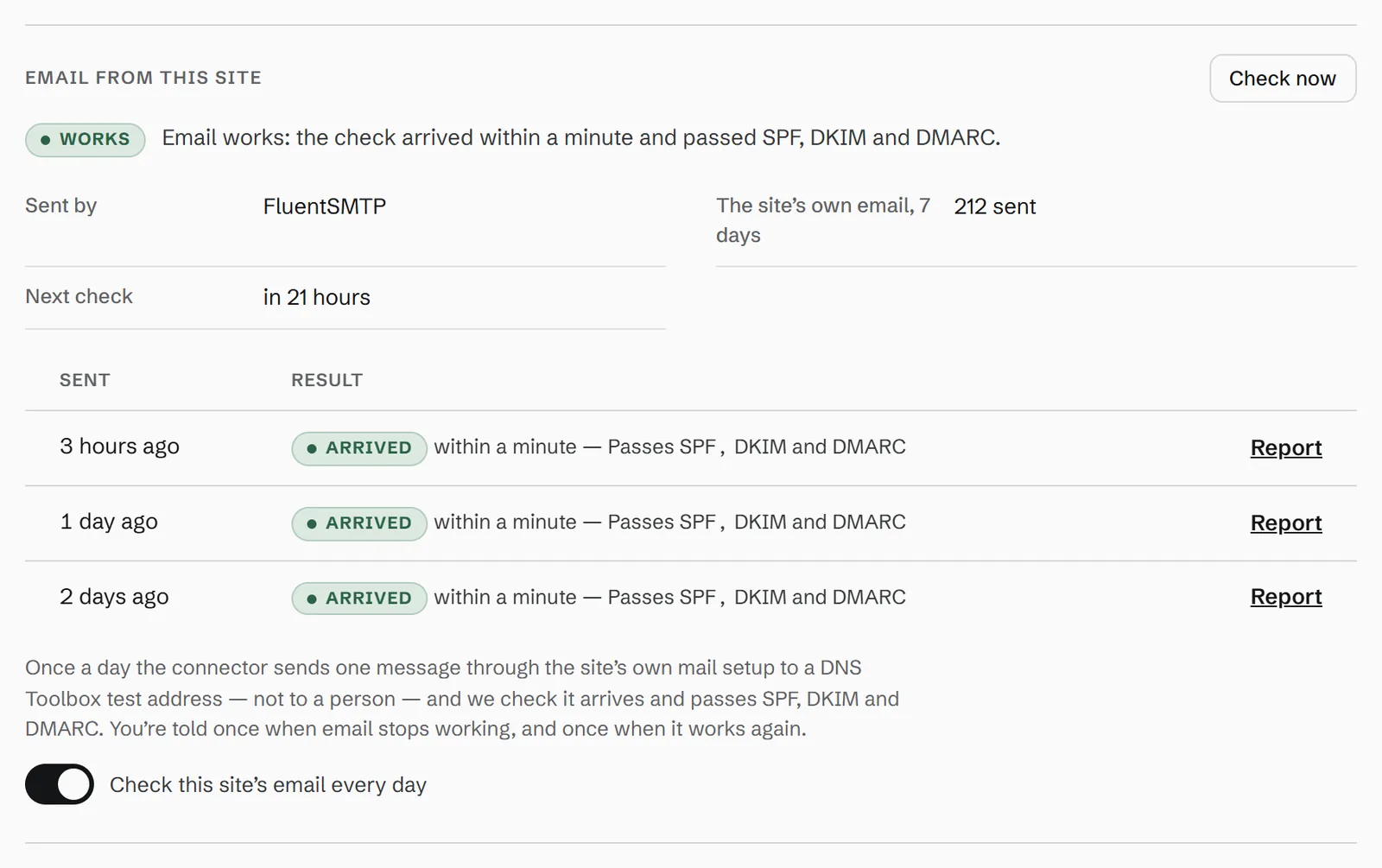
Each arrived message has a Report link to the full test result — the headers, the authentication results and the spam score — the same report as a test you send by hand.
Step 3: When it fails, read why
When the check fails, the section turns red and says what went wrong in words, with the mail server’s own error underneath:
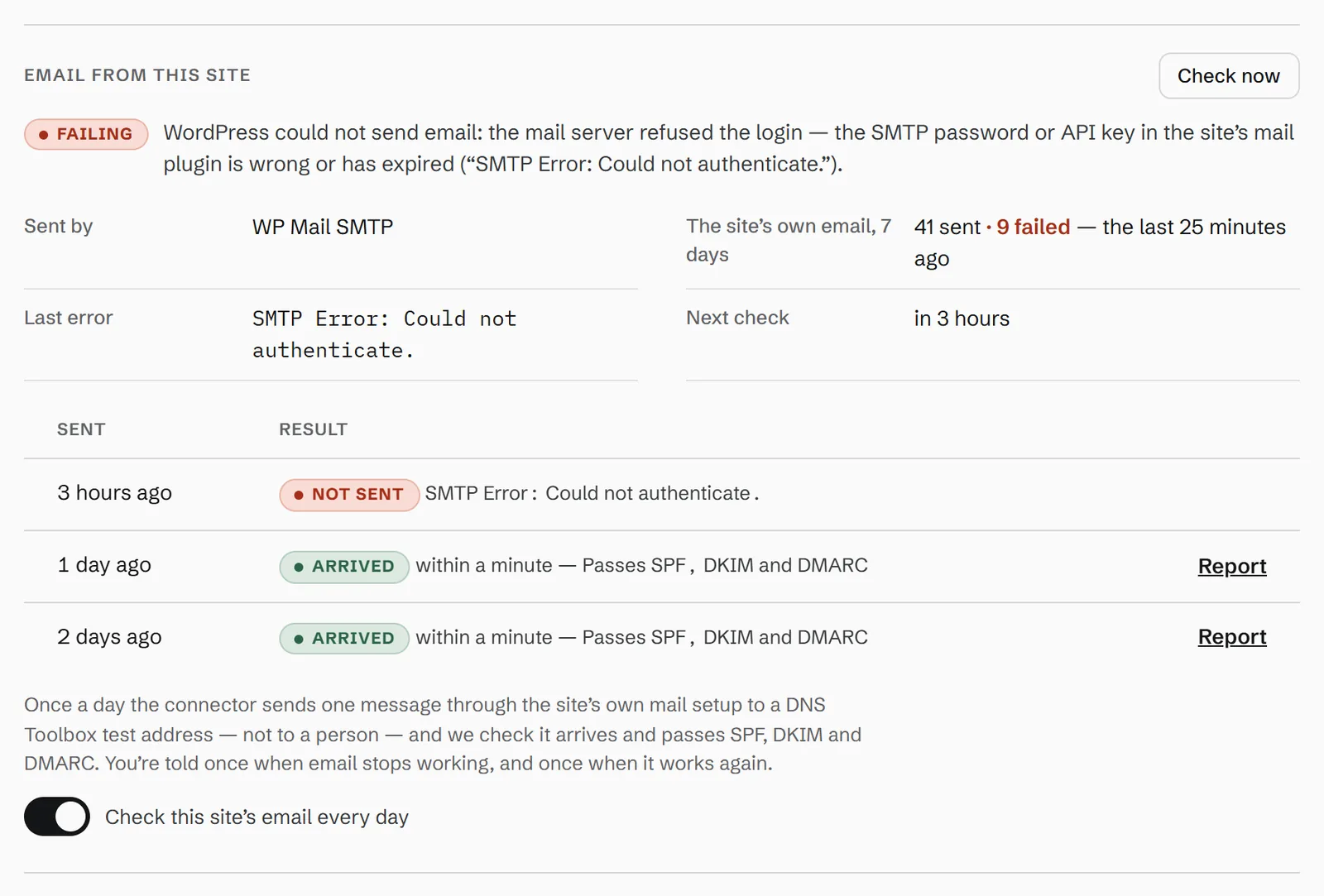
The reasons you are most likely to see, and what to do about each:
| What it says | What to do |
|---|---|
| The mail server refused the login | Open the site’s mail plugin and enter the current SMTP password or API key. If the mailbox uses two-step sign-in, it may need an app password. |
| The site could not reach its mail server | Check the host and port in the mail plugin. Many hosts block port 25; use 587 or 465, or the provider’s API. |
| PHP’s mail() is switched off on this host | Install an SMTP plugin and send through your mail provider instead. |
| The mail service refused the site’s API key | Create a new API key in the provider’s dashboard and paste it into the plugin. |
| Email leaves the site but does not arrive | WordPress handed the message on, but the service it uses dropped it. Check that service’s sending log. |
| Email arrives, but receivers are likely to put it in spam | Fix the record the check names: SPF must include the sending service, DKIM must be set up for it, and DMARC must align. |
Step 4: Fix it, then check again
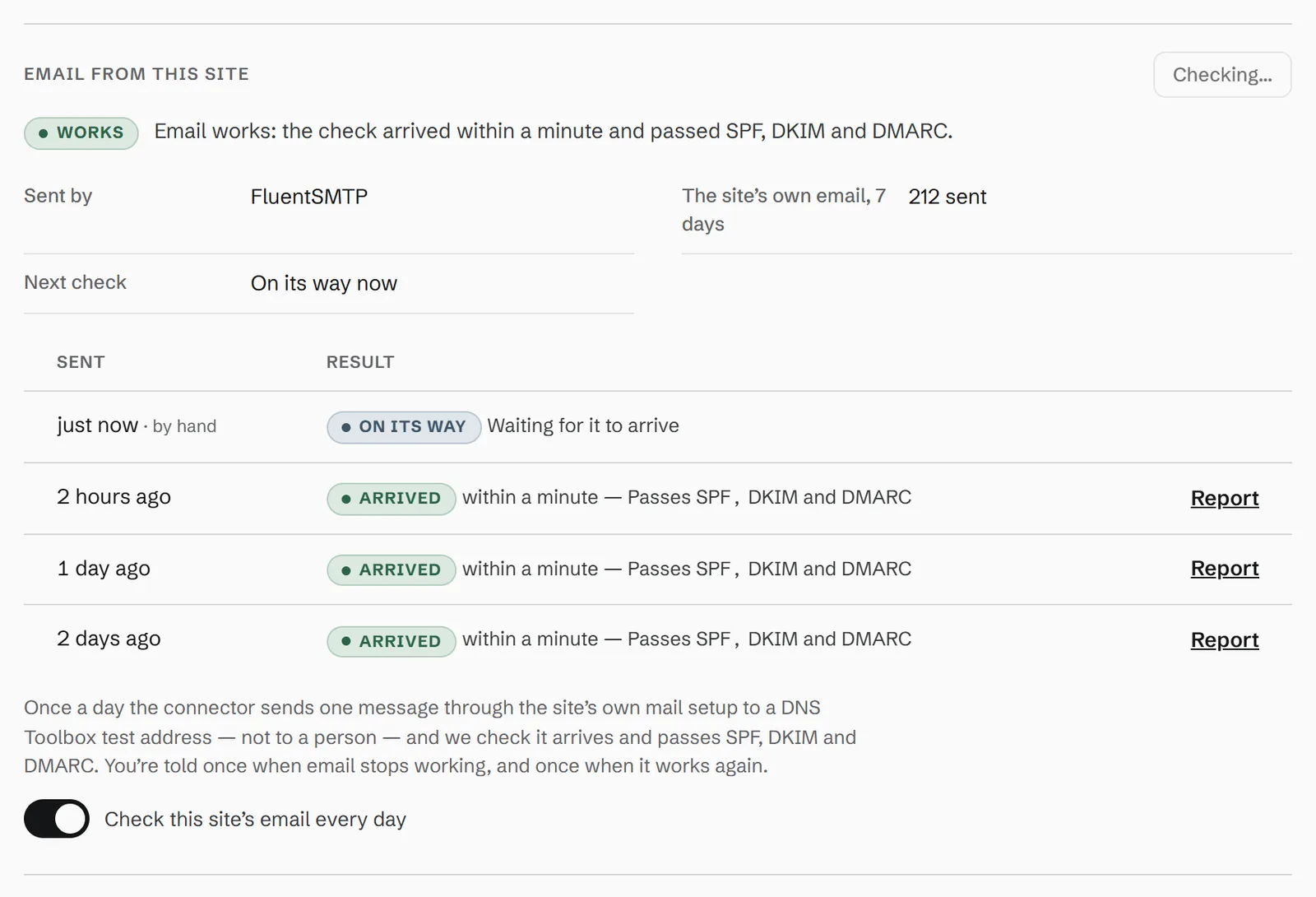
Make the fix in the site’s mail plugin, then press Check now at the top of the section. A test message is sent straight away; the row reads On its way, and the result usually arrives within a minute:
Step 5: Get told the next time
You are emailed once when a site’s email stops working, and once when it works again. The alert is WordPress: email stopped working under Settings → Your alerts, in the WordPress group; set it to Now, a digest, or off, and add Slack, Teams or a webhook from the Personal plan.
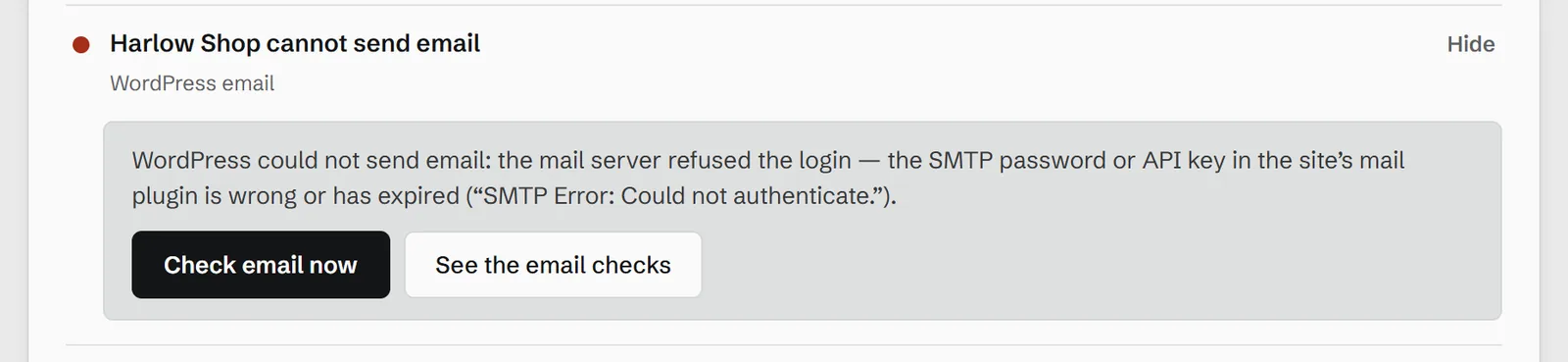
The failure also appears on the domain’s overview and in the dashboard’s Needs you list, with a Check email now button that runs the test from there — see one list of everything that needs you.
Switching the check off for a site
If a site should not send email at all — a staging copy, say — switch the daily check off at the foot of the section, and switch it on again the same way.

Questions
Does the check send email to my visitors or my clients?
No. It sends one message a day to a DNS Toolbox test address, and nothing else. Your mail provider sees one extra message a day from the site.
Which mail plugins does it work with?
Any that sends through wp_mail(), which is all the common ones — and PHP’s own mail() when no plugin is set up. The section names the plugin it found.
How is this different from a test message I send by hand?
A test you send from your own mail app checks your mailbox’s setup. This one checks the site’s: the path a contact form, a password reset or an order email takes. You can still send a test message by hand to check any other system.
Sources
- wp_mail() — WordPress Developer Resources
- RFC 7208: Sender Policy Framework (SPF) for Authorizing Use of Domains in Email, Version 1
- RFC 6376: DomainKeys Identified Mail (DKIM) Signatures
- RFC 9989: Domain-Based Message Authentication, Reporting, and Conformance (DMARC)
- Email sender guidelines (Google)