
Most hacked WordPress sites look fine from wp-admin. The dashboard loads, the Users screen lists the people you expect, the Plugins screen shows the plugins you installed. That is not luck: a backdoor’s first job is to hide itself and the accounts it creates, so that the people who manage the site never see it.
So the usual ways people find out are bad ones: a client asks why their site shows pharmacy adverts to Google, a host suspends the account for sending spam, or Google marks the site as hacked in its search results. By then the attacker has had weeks.
This guide lists the signs a hacked site tries to hide, and shows how DNS Toolbox looks for each of them on every WordPress site you connect — without you having to log in and dig.
The six signs a hacked site tries to hide
- An administrator WordPress does not list. The account is in the database, but a filter removes it from the Users screen.
- An administrator nobody created. A new account with the administrator role, created by code running on the server while nobody was signed in.
- A plugin the Plugins screen does not show. Its folder is there and it runs on every page, but it removes itself from the list.
- Code that behaves like a backdoor. Code that runs code it has just decoded, signs people in without the login form, or accepts uploaded files without checking them.
- PHP files where only images belong. The uploads folder holds pictures and documents; a PHP file there is usually a web shell.
- Pages that change for Google. A script added in front of every page, or spam shown only to search engines and to visitors who arrive from a Google result, so the owner never sees it.
You can look for some of these by hand — compare the user count in the database with the Users screen, list the folders in wp-content/plugins, search uploads for .php files — but on more than one site, nobody keeps doing that every day. Here is how to have it done for you.
Step 1: Connect the site with the connector
The checks inside a site need the DNS Toolbox connector, a small plugin you install once and pair with a one-time code. Add the site on the WordPress page, choose the connector, install it and paste the code. The checks described here need version 1.9.0 or later; the connector updates like any other plugin.
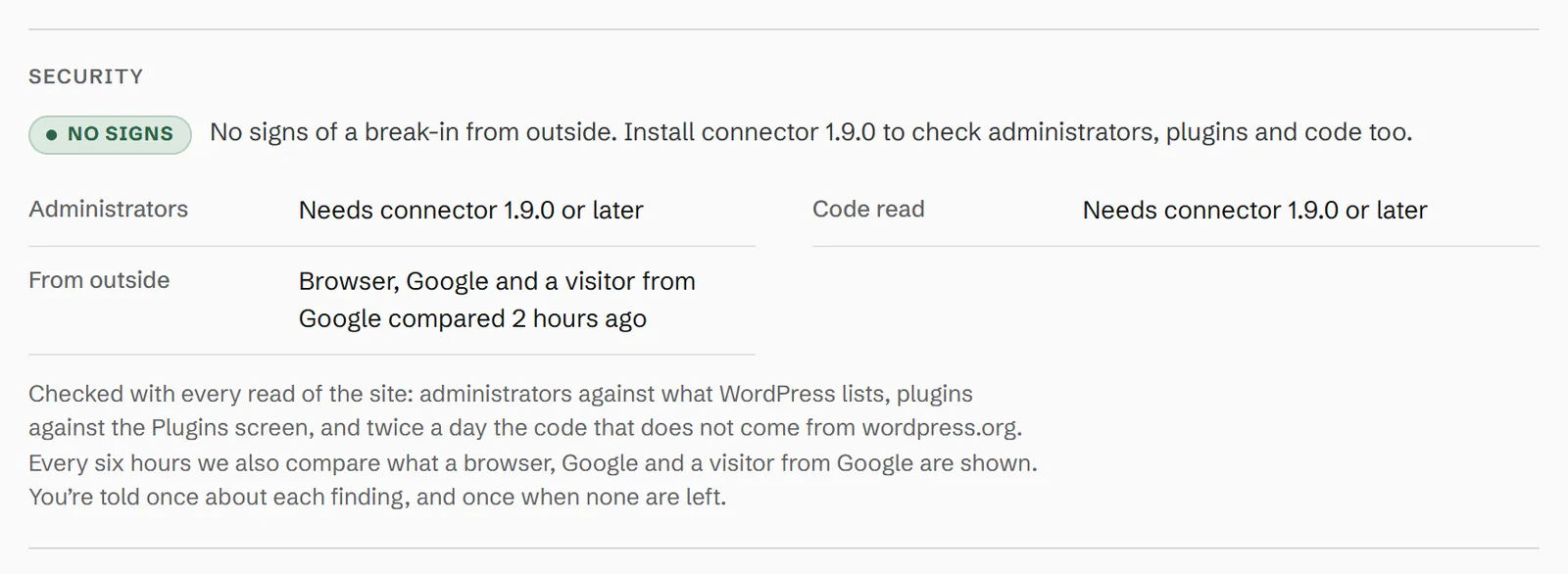
A site you watch without the connector — read with an application password only — still gets the check from outside, but the security section says what it cannot see:
Step 2: Read the Security tile
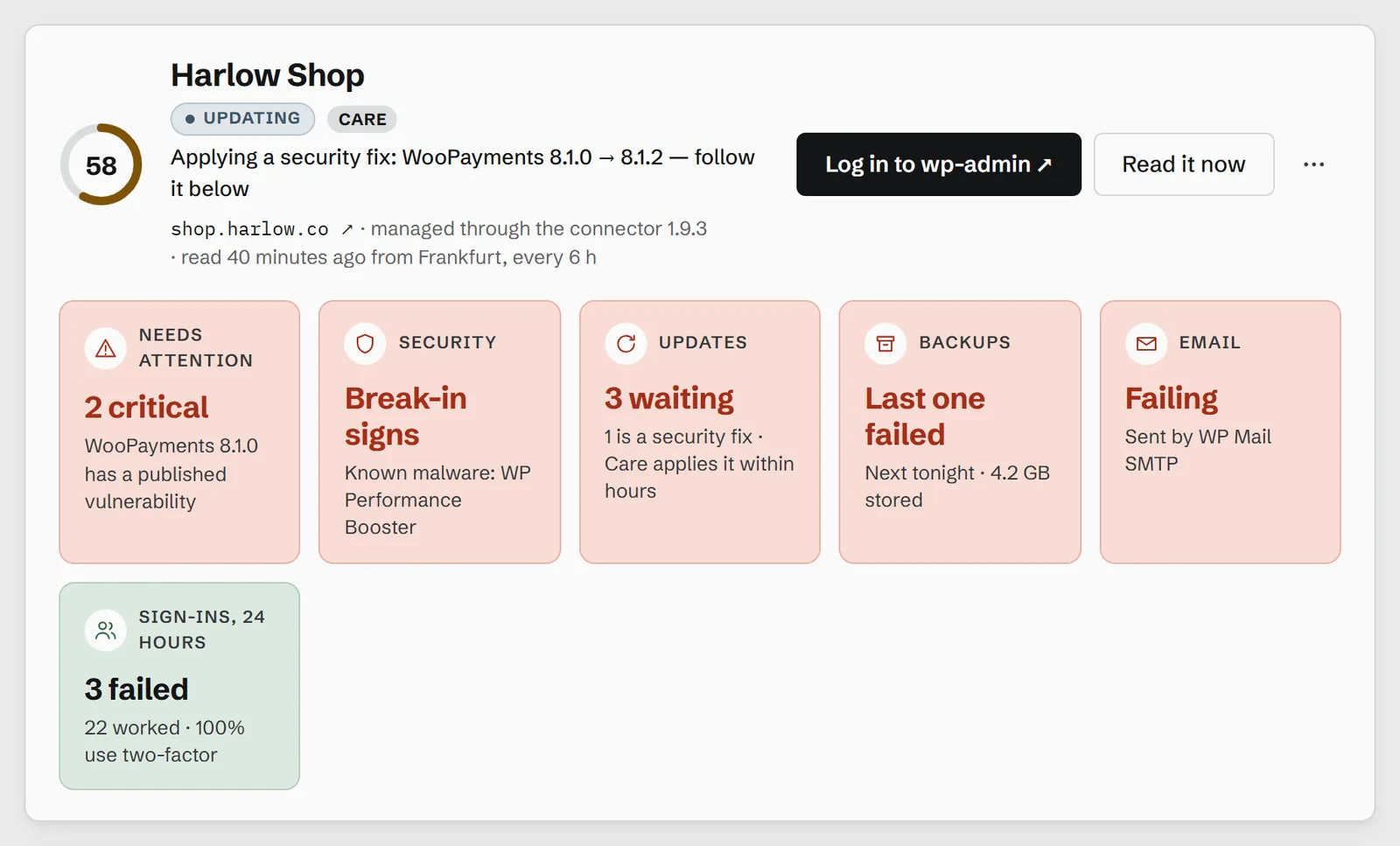
Open the domain and its WordPress tab. The site’s header has a row of tiles; Security is the one this guide is about. On a clean site it reads No signs. When something is wrong it turns red and names the most serious finding:
Step 3: Open the findings
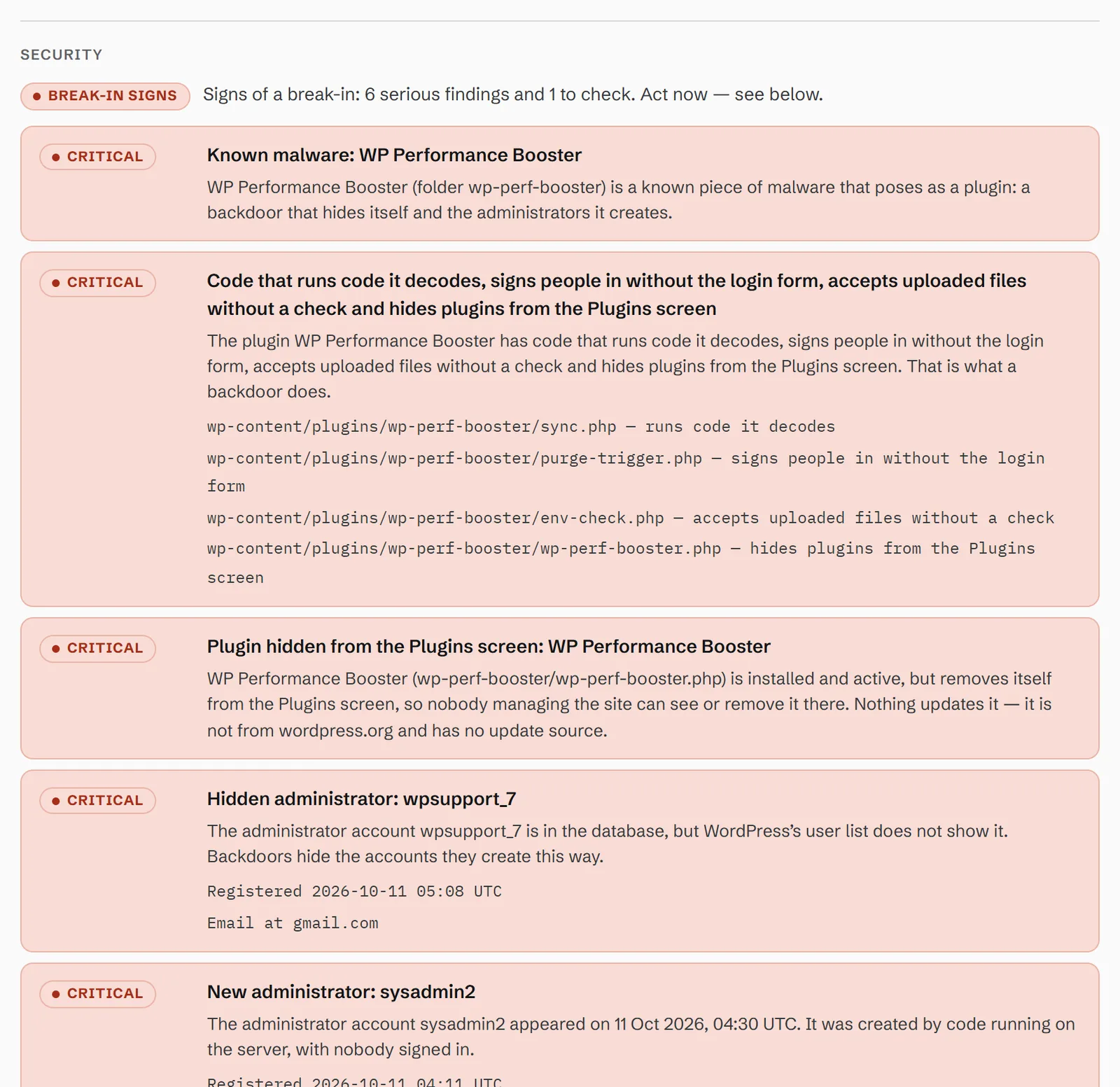
Below the tiles, the Security section lists every finding, most serious first. Each one says what was found, why it matters and exactly where it is — the account name and when it was registered, or the plugin folder and the files that hold the code:
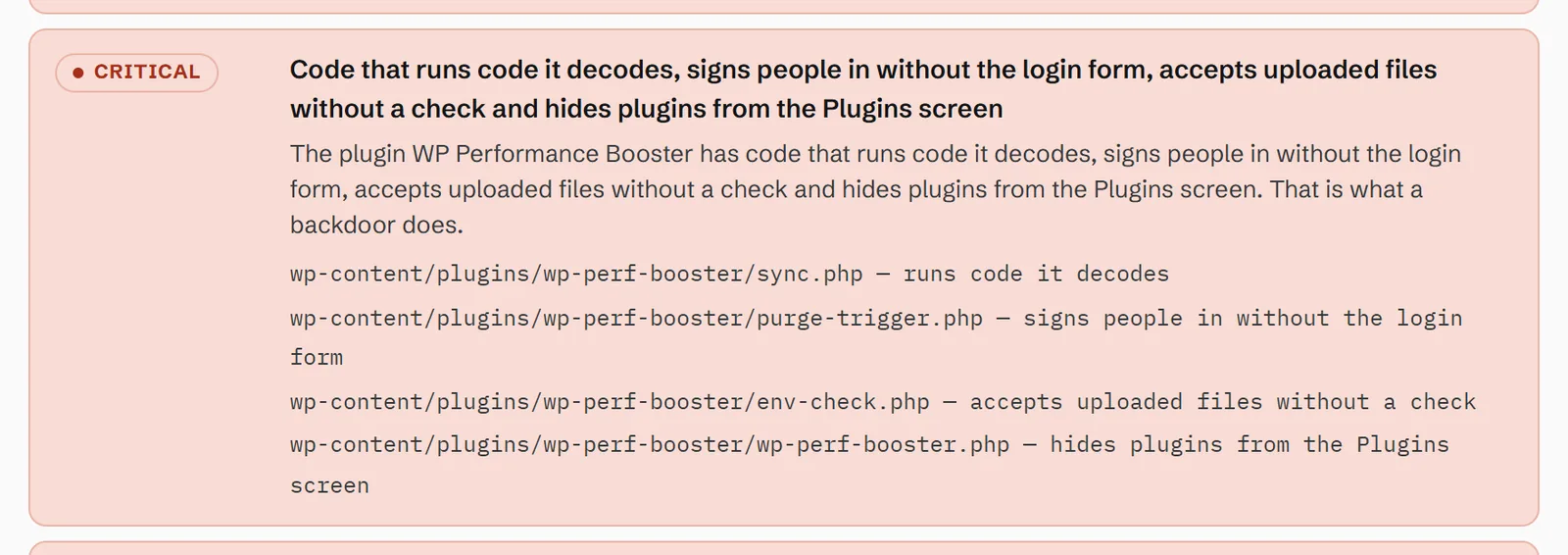
A finding about code lists each file and what it does. This is the part you hand to whoever cleans the site:
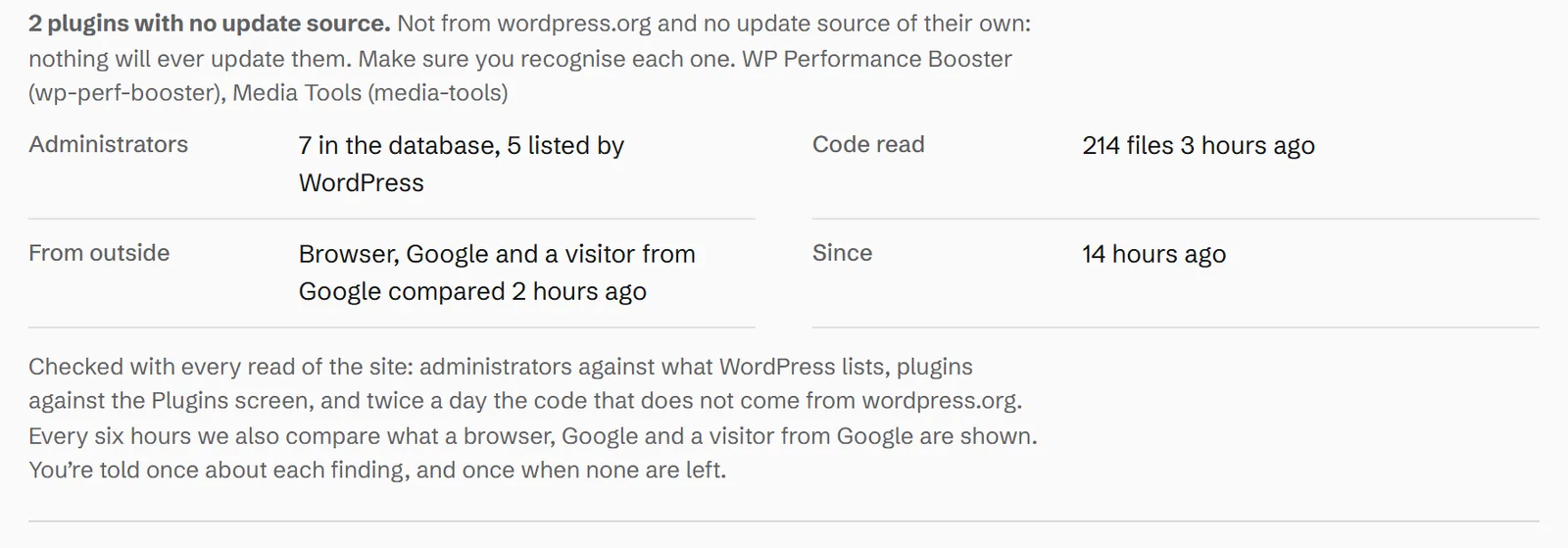
Not every finding is an alarm. A file that only needs a look — WordPress started by a script inside wp-content, say — is marked Check rather than Critical, and plugins that have no update source at all are listed as a note, so you can make sure you recognise each one.
Step 4: Check what the findings rest on
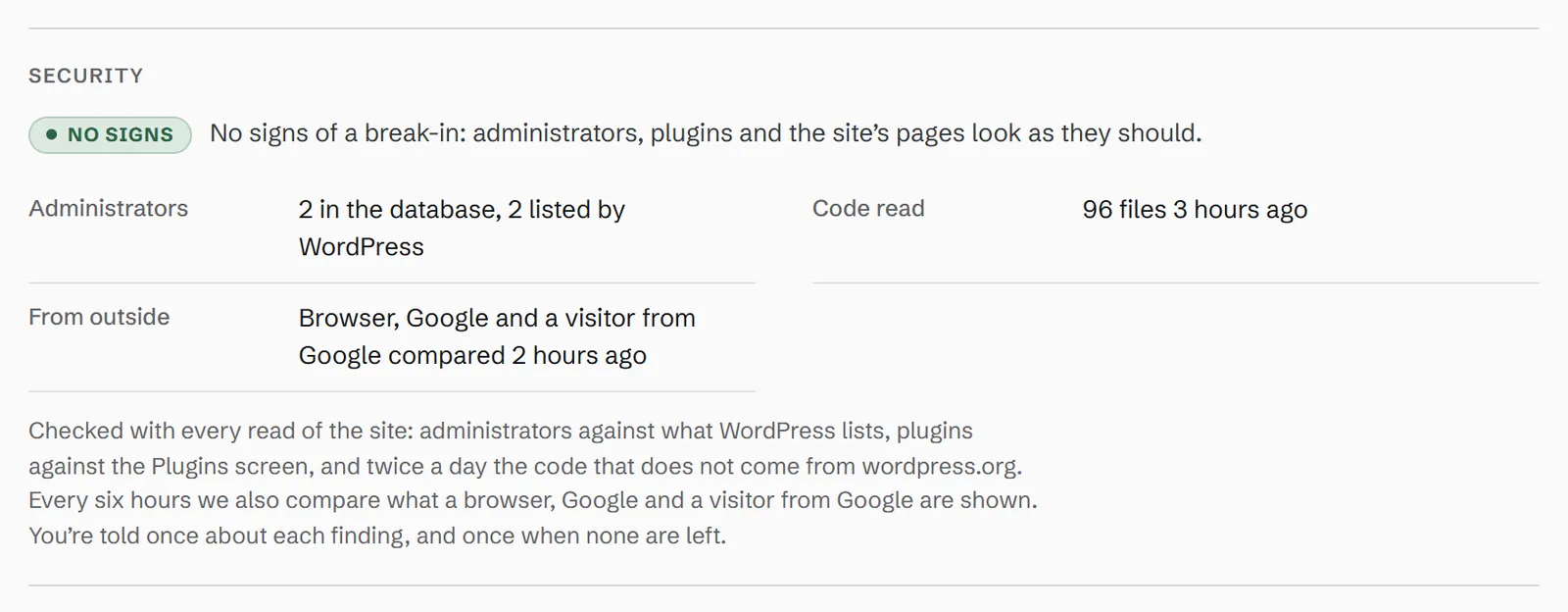
Under the findings, the section shows what was compared and when: how many administrators are in the database against how many WordPress lists, how many files of code were read, and when the site was last compared from outside as a browser, as Google and as a visitor from Google.
On a clean site the same section is short, and the numbers agree:
Step 5: Make sure the alert reaches you
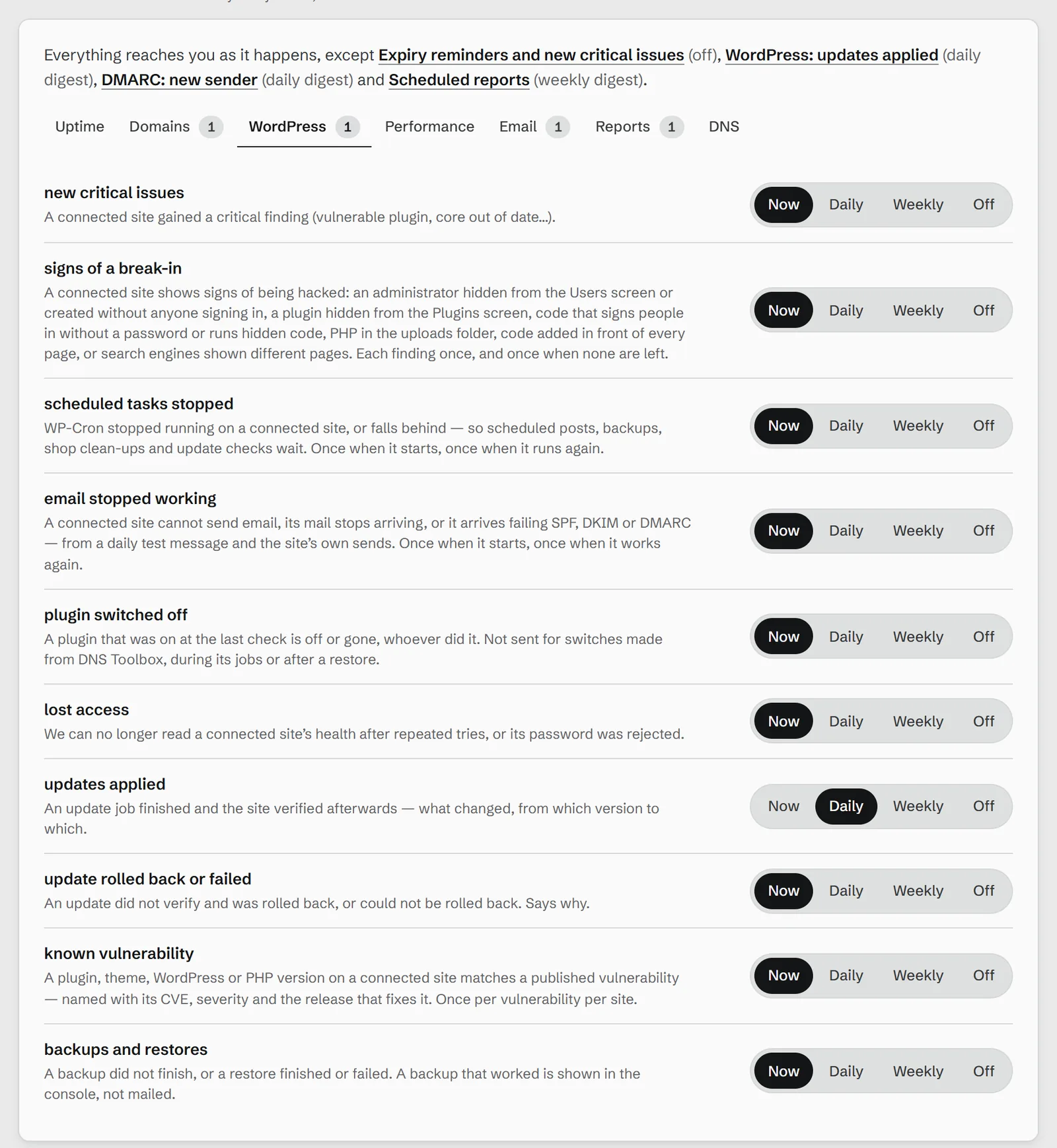
You are emailed the moment the first sign is found, and once more when none are left — not every time the site is read. Signs found while the site is already reported, as the code scan works through its files, are gathered into one email a day rather than one each. To choose how, open Settings → Your alerts, pick the WordPress group and set signs of a break-in to Now (the default), a daily or weekly digest, or off. Alerts can also go to Slack, Teams, Discord, PagerDuty or a webhook from the Personal plan.
The same findings also appear on the domain’s overview and in the dashboard’s Needs you list, with a button that opens the security findings or logs you in to wp-admin — see one list of everything that needs you.
What to do when you see a finding
A finding is evidence, not a cleanup. Deleting the one plugin it names rarely ends a break-in: the attacker usually left more than one way back in. In order:
- Take a backup first, as evidence and as a way back. With WordPress Care, Back up now is on the site’s Backups tab.
- Remove the accounts you did not create — the findings name them — and reset every administrator’s password. An account WordPress hides may not show on the Users screen until the code hiding it is gone; WP-CLI or your host’s database tool can remove it either way.
- Replace the code, do not edit it. Remove the plugin and files the findings name, and reinstall WordPress, plugins and themes from their original sources.
- Change the secret keys in
wp-config.php, so every stolen login cookie stops working. - Find the way in — usually an outdated plugin with a published vulnerability — and update it. DNS Toolbox lists those on the same site.
- Ask Google to look again if it flagged the site: a review request in Search Console, once the site is clean.
When the last finding is gone, DNS Toolbox says so once — the all clear — and the Security tile goes back to No signs.
How the checks work, and what they cannot see
- With every read of the site (every 12 hours on Free, down to every hour on Agency): administrators in the database against the ones WordPress lists, plugins installed against the Plugins screen, and new administrators created with nobody signed in.
- Twice a day: the code that does not come from wordpress.org — custom and premium plugins, must-use plugins, PHP in the root of
wp-contentand in uploads — read for the traits of a backdoor. Comments are ignored, and code inside bundled libraries and plugins’ own data files is judged with more care, so ordinary code does not raise an alarm. - Every six hours, from outside: the home page as a browser, as Google and as a visitor from a Google result, and the site’s REST API, compared for spam or a redirect that only some of them get.
Plugins from wordpress.org are checked against published vulnerabilities by version rather than read line by line. And no check proves a site is clean: a careful attacker can hide in ways nothing outside the server sees. What these checks do is catch the common break-ins on the day they happen, instead of weeks later.