
A post scheduled for nine o’clock that says Missed schedule at noon. A backup plugin whose last backup was three weeks ago. A shop whose expired sessions and abandoned carts pile up in the database. They all have the same cause: WP-Cron stopped, and WordPress does not tell anyone.
WP-Cron is how WordPress runs anything on a schedule — publishing scheduled posts, checking for updates, and the jobs plugins hand it: backups, security scans, newsletter sends, WooCommerce clean-ups. This guide explains why it stops, how DNS Toolbox tells you when it has, and how to fix it so it does not stop again.
How WP-Cron works, and why it stops
WP-Cron is not a real scheduler. Nothing on the server wakes it up: when someone visits the site, WordPress looks at the list of tasks that are due and, if there are any, makes a request to its own wp-cron.php to run them in the background. No visits, no tasks. A request that cannot get through, no tasks either.
So it stops for a handful of reasons:
- It was switched off with
DISABLE_WP_CRONinwp-config.php— a common speed tip — and nobody added the server cron job that is supposed to replace it. Or the cron job was lost when the site moved host. - The site cannot reach itself. A firewall, a security plugin or a password on the whole site blocks WordPress’s request to its own
wp-cron.php. - A task fails every time or runs too long, and holds up the ones behind it.
- Nobody visits. On a quiet site, tasks simply wait for the next visitor. That is not broken — and the hard part is telling it apart from the cases that are.
How DNS Toolbox tells a stopped WP-Cron from a quiet site
Every time DNS Toolbox reads a connected site — every 12 hours on Free, down to every hour on Agency — it looks at the tasks that are due and when WP-Cron last ran. Our read starts WP-Cron the way a visit does, when it works. So a task that was already waiting at the previous read and is still waiting now means WP-Cron did not run when it should have: it has stopped, not just waited for a visitor.
It needs the DNS Toolbox connector, version 1.8.7 or later, and nothing else to set up.
Step 1: Look at the Scheduled tasks section
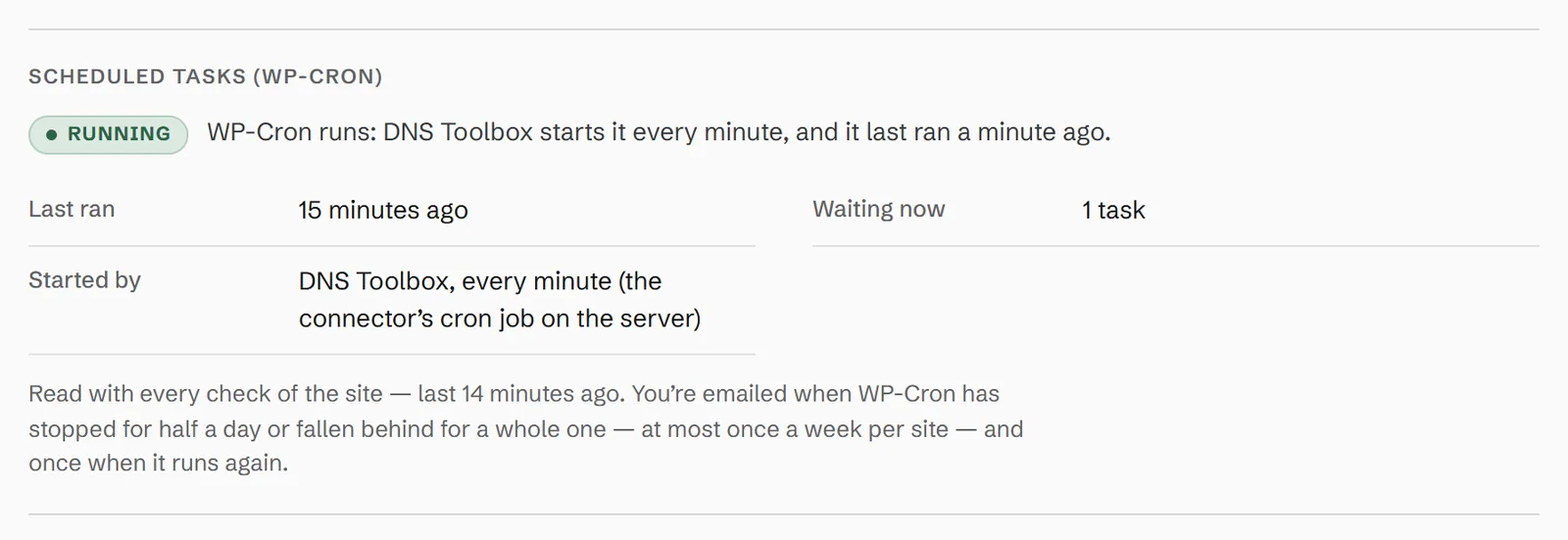
Open the domain’s WordPress tab. The Scheduled tasks (WP-Cron) section says whether WP-Cron runs, when it last ran, how many tasks are waiting and what starts it — visits to the site, or a cron job on the server:
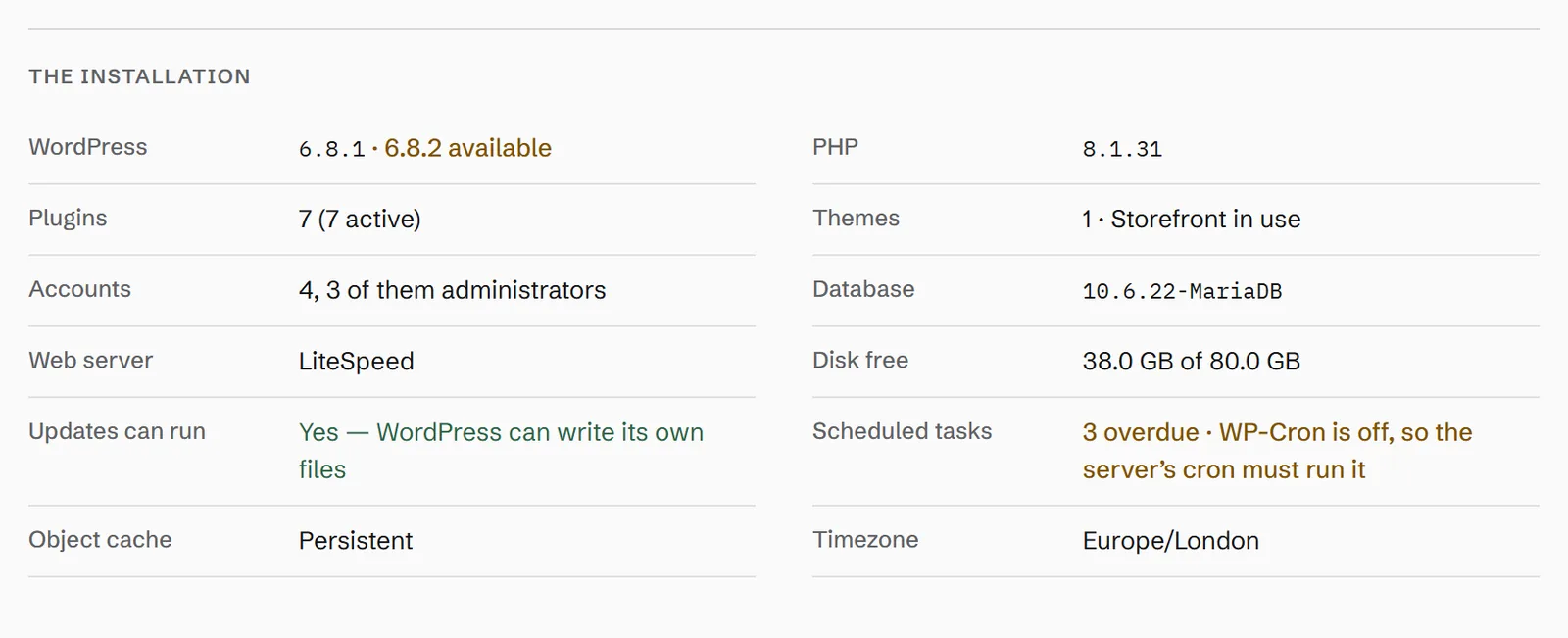
The same answer is in The installation at the foot of the page, next to the WordPress and PHP versions:
Step 2: When it has stopped, read why
When WP-Cron has stopped the section turns red and says how long, how many tasks are waiting and which one has waited longest — and the likely reason:
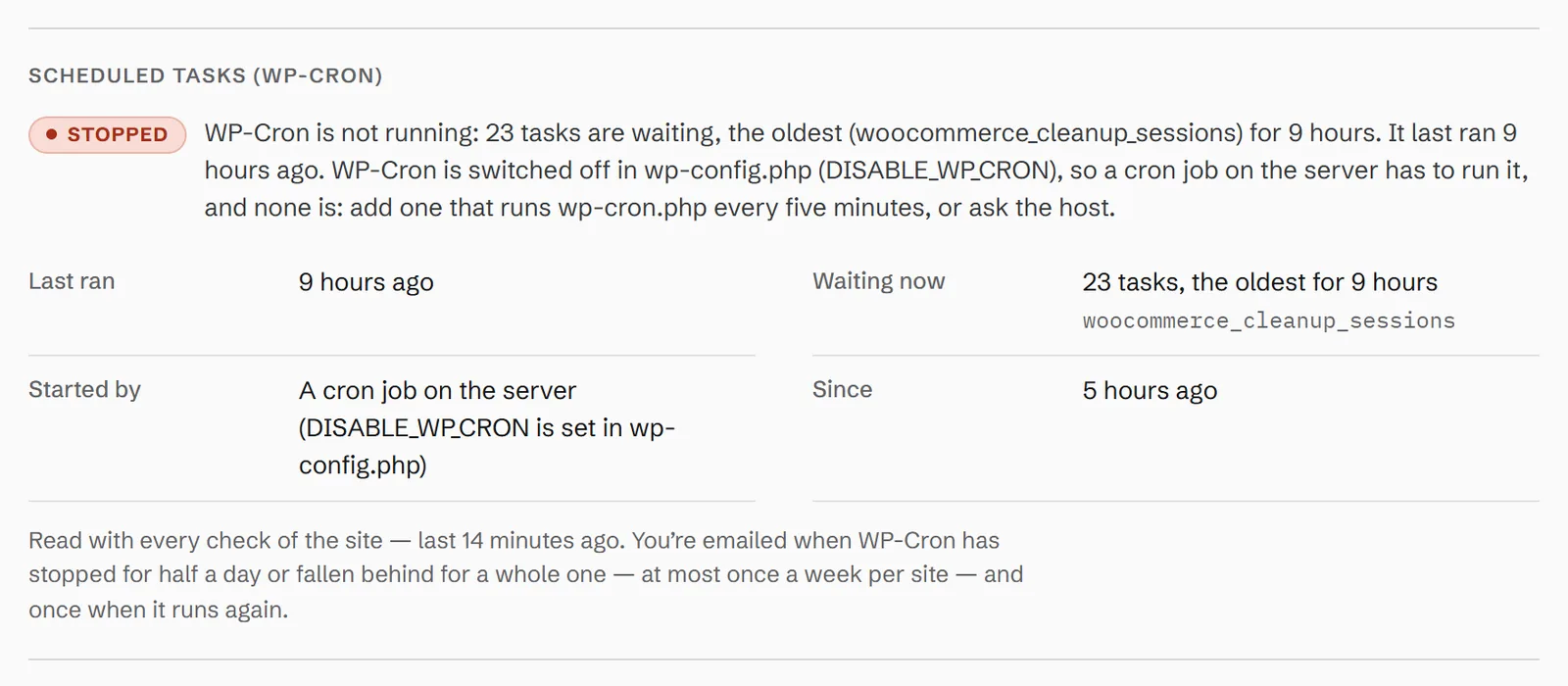
The reason is one of three. Switched off in wp-config.php means a server cron job has to run it and none does. The site cannot make requests to itself means WordPress’s own loopback test fails — usually a firewall, a security plugin or a password on the site. Otherwise a firewall or the host is most likely blocking the request to wp-cron.php.
If WP-Cron runs but tasks still pile up, the section says it cannot keep up instead: a task that runs too long or fails every time is holding up the rest.
Step 3: Fix it with a server cron job
Whatever the reason, the reliable fix is the one the WordPress Plugin Handbook recommends: switch WP-Cron’s visit-driven start off and have the server run it on a timer. In wp-config.php, above the line that says “That’s all, stop editing”:
define( 'DISABLE_WP_CRON', true );Then add a cron job on the server — in cPanel it is Cron Jobs; on other hosts, ask support — that calls wp-cron.php every five minutes. Replace the address with your site’s:
*/5 * * * * wget -q --delete-after https://example.com/wp-cron.php >/dev/null 2>&1If WP-CLI is installed on the server, this runs the due tasks without a web request at all, which also works when a firewall blocks the site’s requests to itself:
*/5 * * * * cd /path/to/wordpress && wp cron event run --due-now >/dev/null 2>&1If DISABLE_WP_CRON was set by mistake and the site gets regular visits, removing that line is enough. When a security plugin or a password on the site blocks the loopback, the server cron job is the cleaner way round it than opening the firewall.
Step 4: Check that it runs again
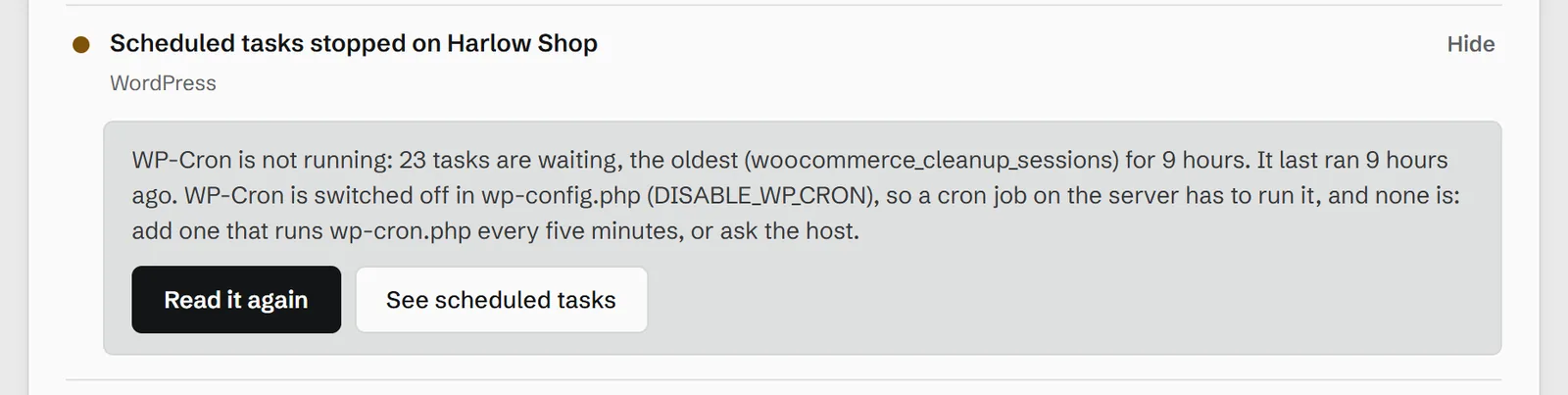
You do not have to wait for the next scheduled read. On the domain’s overview, the stopped WP-Cron is in the What to fix list with a Read it again button; on the site’s own page, Read it now in the header does the same:
Tasks that were waiting run within five minutes of the first cron job, and the section goes back to Running.
Get told the next time
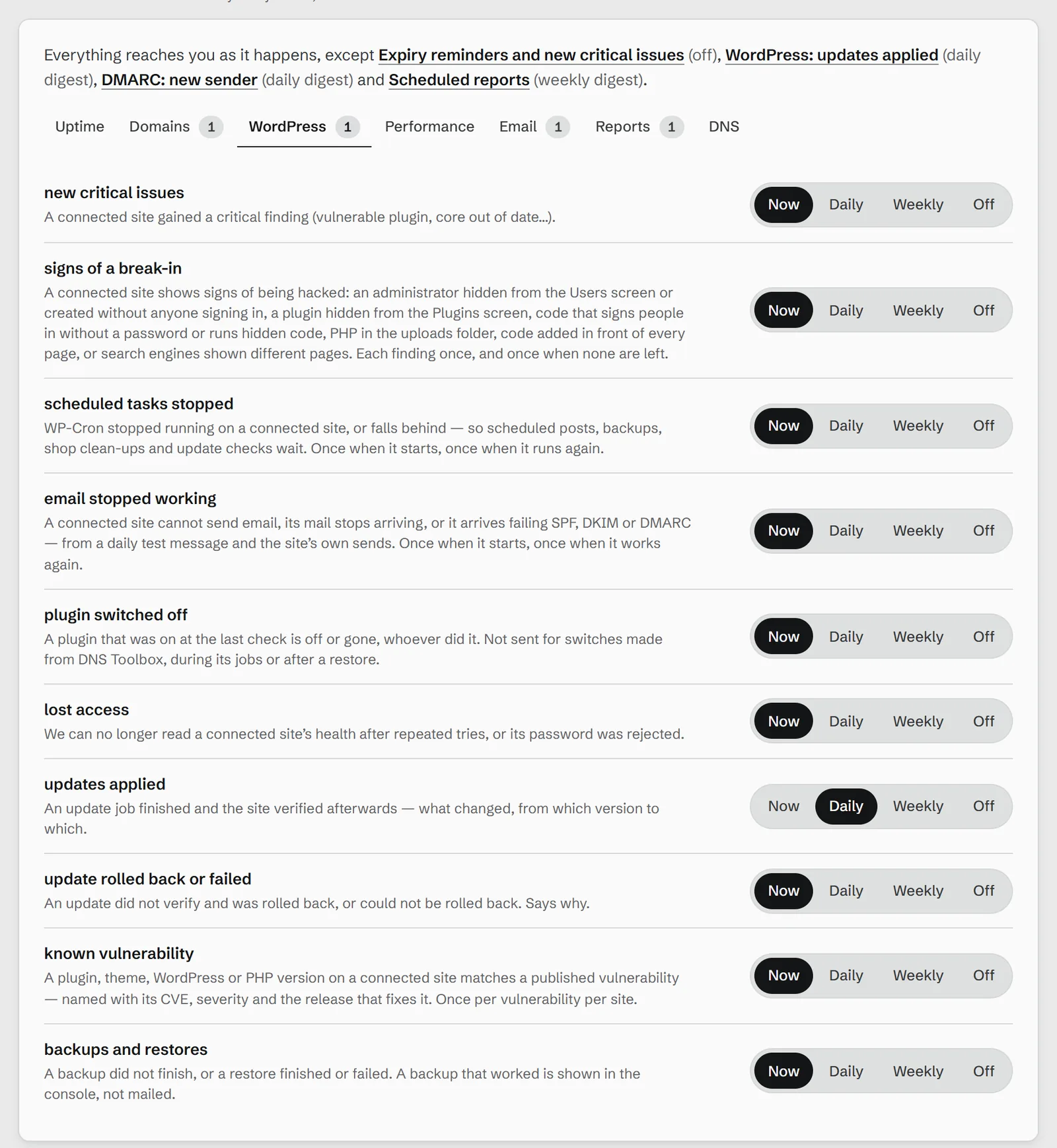
You are emailed once WP-Cron has been stopped or falling behind for a few hours — its oldest task three hours late on two reads in a row — and once when two reads in a row find it running again. A site whose WP-Cron only runs now and then does not email you every time it catches up: a problem that comes back within a day of the last email is shown on the site, and emailed only if it is still there a day later. The alert is WordPress: scheduled tasks stopped under Settings → Your alerts, in the WordPress group:
A stopped WP-Cron also sits in the dashboard’s Needs you list until it runs again — see one list of everything that needs you.